GitHub pages with a simple shell script instead of Jekyll
After reading Fabien Sanglard’s blog post about bloated websites, I realised that I am guilty, too. Using Jekyll for building my little blog implies unnecessary dependencies and waste of computing power. A simple shell script and Pandoc for converting the markdown should do the job. And there are several projects like Arise, bashblog or bic that use bash to create static blog websites from markdown. However, in my opinion configuring them is more work that writing such a script from scratch. And I prefer pure POSIX shell scripting over bash (the b stands for bloated).
What the generator script does
The script recursively descents the src/ directory and
copies the whole tree with all files to the dist/
directory. Only markdown files (extension .md) get a
special treatment: They are converted to HMTL with Pandoc and a header
and footer in pure HTML are added. To be precise, the relative
href= references in the header and footer have to be
adjusted to the directory depth and there is a little postprocessing to
set the title of the HTML page according to the title: tag
in the frontmatter of the markdown file (Pandoc cannot do this).
If the frontmatter contains a date: YYYY-MM-DD tag or
the file path contains a date in the form YYYY-MM-DD, the
page is treated as a blog post and added to the list of blog posts. At
the end a page with this list, ordered by date is generated. That’s
all.
This gives maximum flexibility:
- Any directory structure is possible.
- Arbitrary HTML pages can be added (they are simply copied).
- The markdown posts can be placed anywhere within the directory structure.
Legacy Jekyll links
Since postings can be put anywhere in the directory tree, it is easy to preserve the URLs of the deprecated Jekyll pages. You just have to create enough subdirectories and put your markdown file there. The script will find them and order them by date automatically
But I want that even my old posts are in the new directory structure
which is ordered by date. Therefore I added redirects using the
<meta http-equiv="refresh"> tag:
<!DOCTYPE html>
<html lang="en">
  <head>
    <meta http-equiv="refresh" content="0; url=https://bobbl.github.io/NEWURL">
    <title>Redirection</title>
  </head>
  <body>
    <p>
      The page has moved to
      <a href="https://bobbl.github.io/NEWURL">
               https://bobbl.github.io/NEWURL
      </a>. You will be automatically redirected.
    </p>
  </body>
</html>
Create GitHub action
GitHub actions are created by putting a YAML scripts in
.github/workflows/. Several internet sources recommend to
use peaceiris/actions-gh-pages@v4
to deploy static HTML files to GitHub. So I modified one of the proposed
YAML files to fit my needs. But it didn’t work. My build script was
executed and the generated files where pushed to the branch
gh-pages, but they were not deployed to my GitHib page http://bobbl.github.io.
Therefore I choose another way: modify an action suggested by GitHub.
To get this script, you have to delete the last run of a workflow. This
can be done by navigationg in the GitHub web interface to
Actions and remove the topmost workflow runs by clicking on
the three dots and choosing Delete workflow run.
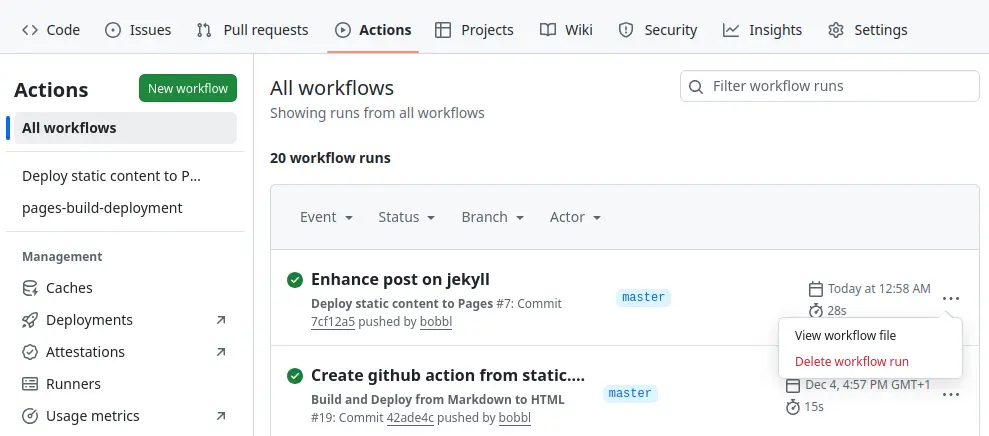
Then go to
Settings > Pages > Build and deployment > Source
and choose GitHub Actions.
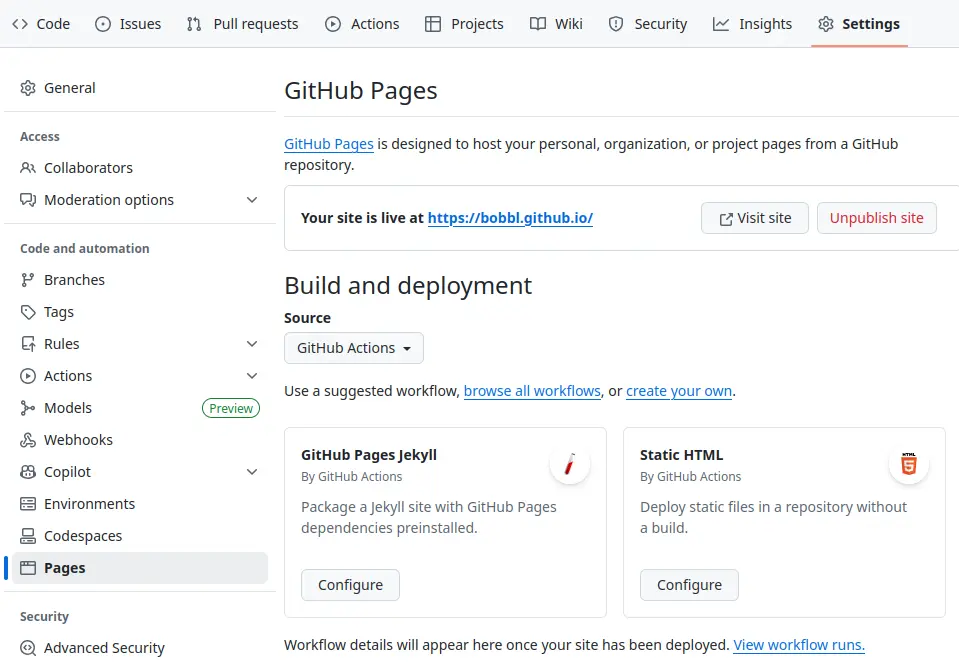
Click on Static HTML > Configure and edit the
suggested static.yml.
Replace the setup step
- name: Setup Pages
  uses: actions/configure.pages@v5
by two steps to install Pandoc and run the build script
- name: Install Pandoc
  uses: pandoc/actions/setup@v1
- name: Build HTML from Markdown
  run: ./make.sh build
Finally, the path to the HTML files must be set to
dist:
path: './dist'The complete workflow file looks like this (some comments removed, download with all comments here)
# Simple workflow for deploying static content to GitHub Pages
name: Deploy static content to Pages

on:
  # Runs on pushes targeting the default branch
  push:
    branches: ["master"]

  # Allows you to run this workflow manually from the Actions tab
  workflow_dispatch:

# Sets permissions of the GITHUB_TOKEN to allow deployment to GitHub Pages
permissions:
  contents: read
  pages: write
  id-token: write

# Allow only one concurrent deployment
concurrency:
  group: "pages"
  cancel-in-progress: false

jobs:
  # Single deploy job since we're just deploying
  deploy:
    environment:
      name: github-pages
      url: ${{ steps.deployment.outputs.page_url }}
    runs-on: ubuntu-latest
    steps:
      - name: Checkout
        uses: actions/checkout@v4

      - name: Install Pandoc
        uses: pandoc/actions/setup@v1
      - name: Build HTML from Markdown
        run: ./make.sh build

      - name: Upload artifact
        uses: actions/upload-pages-artifact@v3
        with:
          path: './dist'
      - name: Deploy to GitHub Pages
        id: deployment
        uses: actions/deploy-pages@v4
Disable Jekyll
There are different suggestions on how to disable Jekyll:
- Create empty
.nojekyllfile in the root directory - Create empty
.nojekyllfile and in thedist/directory. - Remove all Jekyll files (
Gemfile,Gemfile.lock,config.yml,_posts/, …) - Removed all workflow runs from the
Actiontab in the GitHub web interface. (see screenshot above)
I don’t know, what really works or if any of these steps is necessary at all.
2025-12-07